Phidias Tutorial · 3 minutes
How to Log Into Tradovate With Your Phidias Account
You bought your first Phidias account. Tradovate is the platform that powers everything (Tradovate web, NinjaTrader, and TradingView all use the same Tradovate credentials). This guide walks you through the first-time login, the agreements you have to sign, and getting into the Tradovate web app ready to trade.
Browse the Phidias account lineup →
What you need before you start
- An active Phidias account (Express to Live, Fundamental, or Premium).
- Your Tradovate credentials, found inside your Phidias dashboard under the NinjaTrader Account window.
- A browser to open the Tradovate web app. No download required.
Here is the part most traders miss: the first-time login through the Tradovate web app is a mandatory step, even if you plan to trade exclusively on NinjaTrader or TradingView. The reason is simple. You have to sign the market data and license agreements once, and the only place you can sign them is the Tradovate web app. Once those are signed, every other platform sharing your Tradovate credentials works.
The whole flow takes around three minutes. The steps below mirror the video above, with the exact clicks, the exact fields, and the things that trip people up the most.
Step 1 — Open the Tradovate web app from your Phidias dashboard
Log into your Phidias dashboard. Inside the dashboard you will see a section called NinjaTrader Account. The name can be confusing, because this section holds the credentials that work across Tradovate, NinjaTrader, and TradingView. Click Tradovate Web at the top of that window.
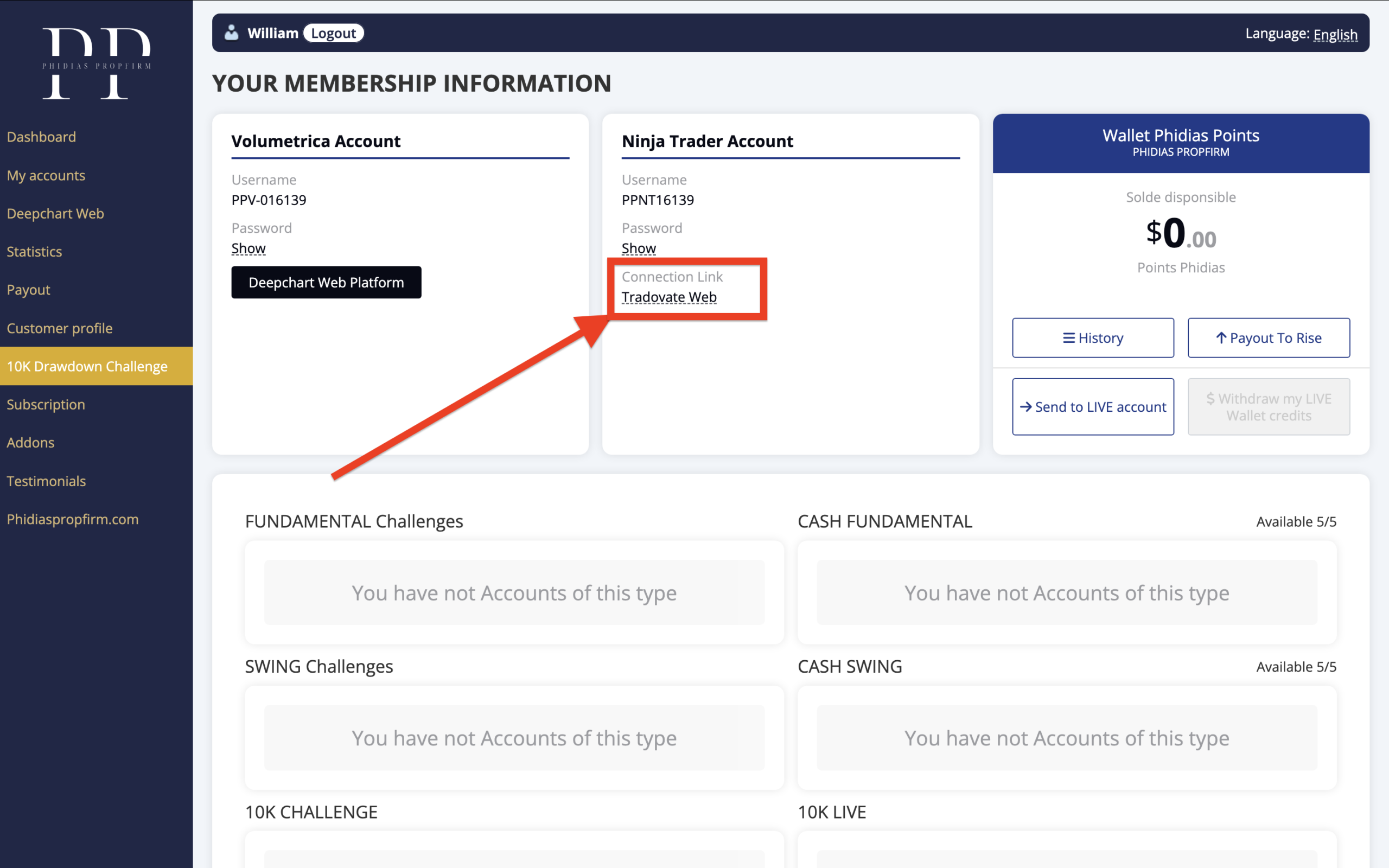
This opens the Tradovate web app in a new tab.
Step 2 — Log into Tradovate web app with your credentials
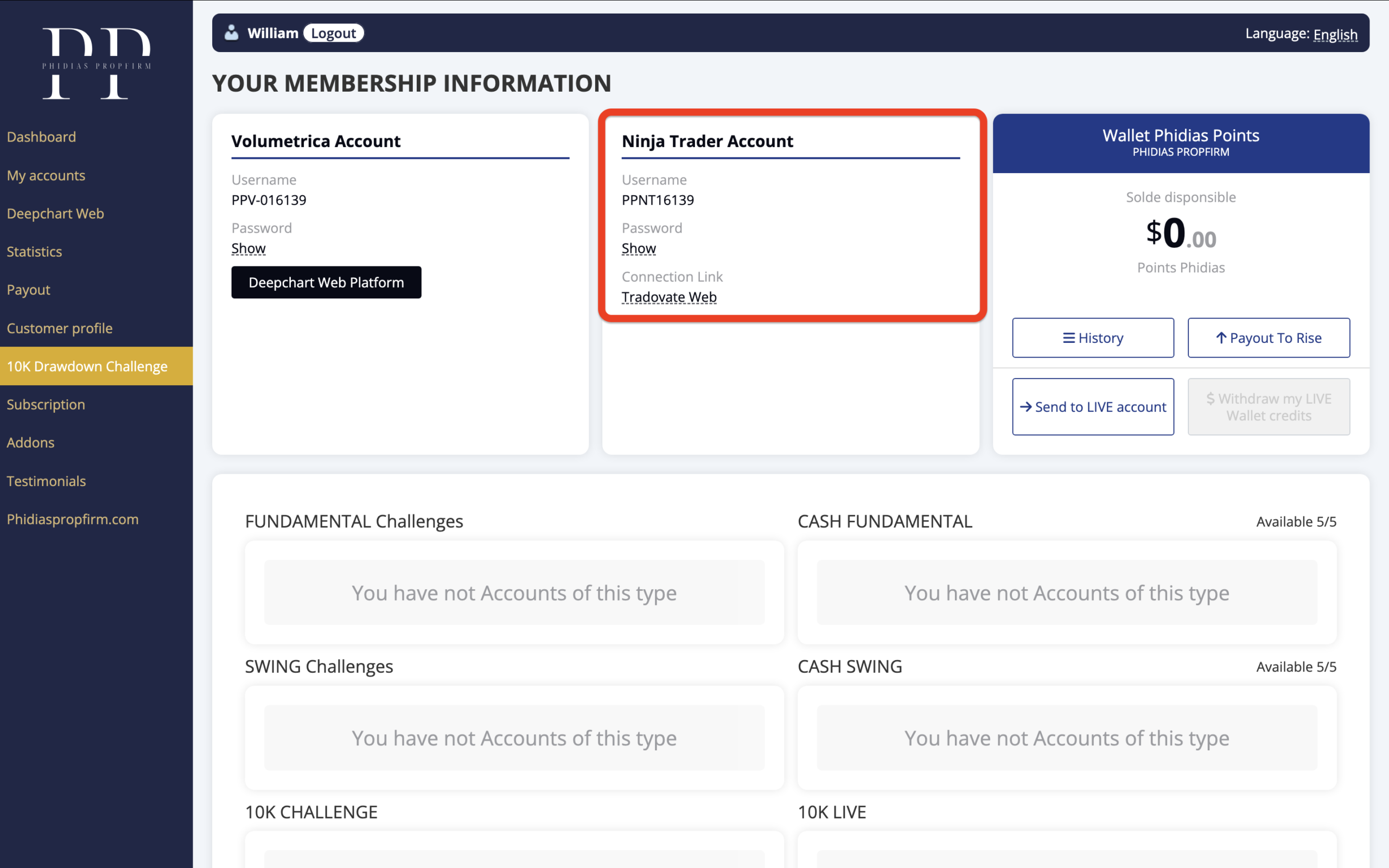
Enter your Phidias Propfirm, NinjaTrader account credentials from your Phidias Dashboard to log into Tradovate.
Step 3 — Set the Market Data Subscriber Certification to Nonprofessional
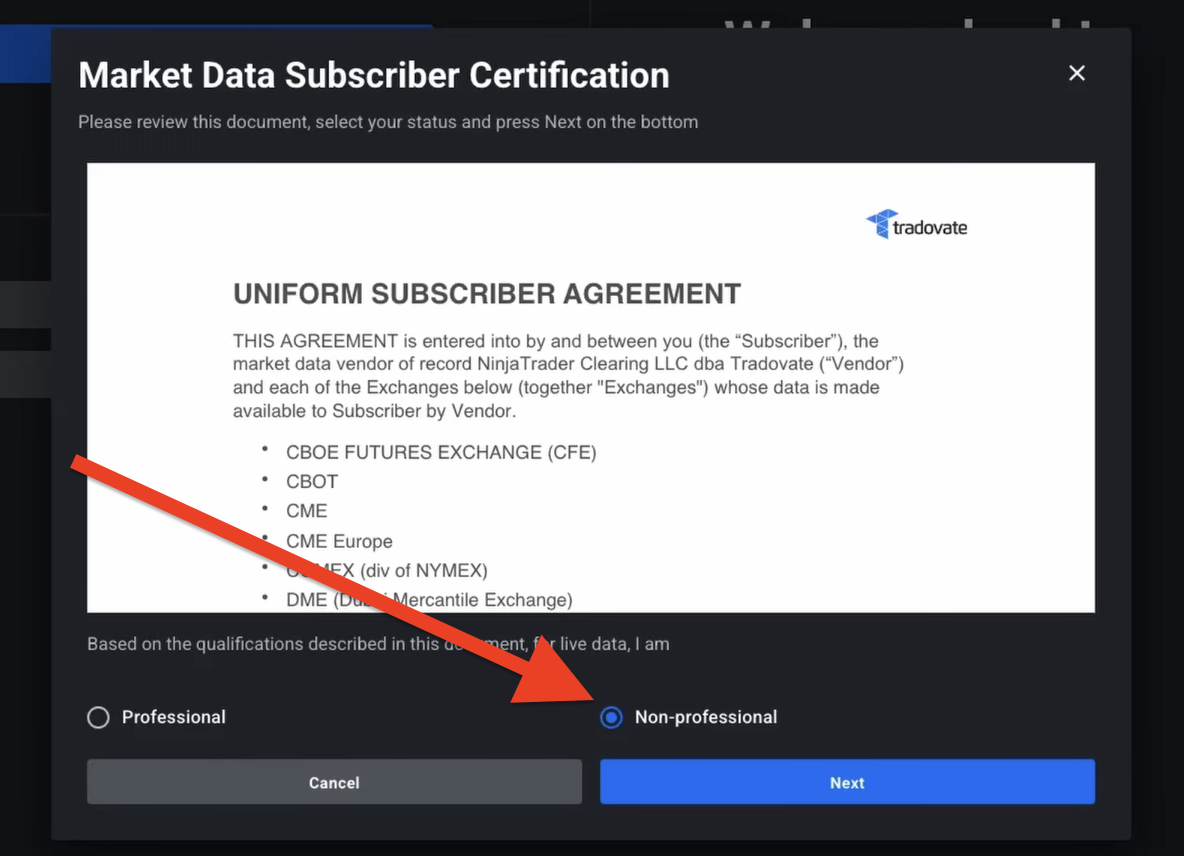
The very first screen on Tradovate is the Market Data Subscriber Certification. By default it is usually set to Nonprofessional, which is what you want as a retail trader funded by Phidias. If for any reason it shows Professional, switch it to Nonprofessional before clicking Next. This is the single most important box on this screen, because the wrong selection triggers a different fee structure.
Step 4 — Sign the Uniform Subscriber Agreement
The next screen is the Uniform Subscriber Agreement. Read through it, tick I have read and agree, and move to the electronic signature box. The signature box requires you to type your name exactly as it appears just above the field. Capitalisation, spacing, accents, all of it. If the name printed above is “Florian Beraud”, typing “florian beraud” will fail.
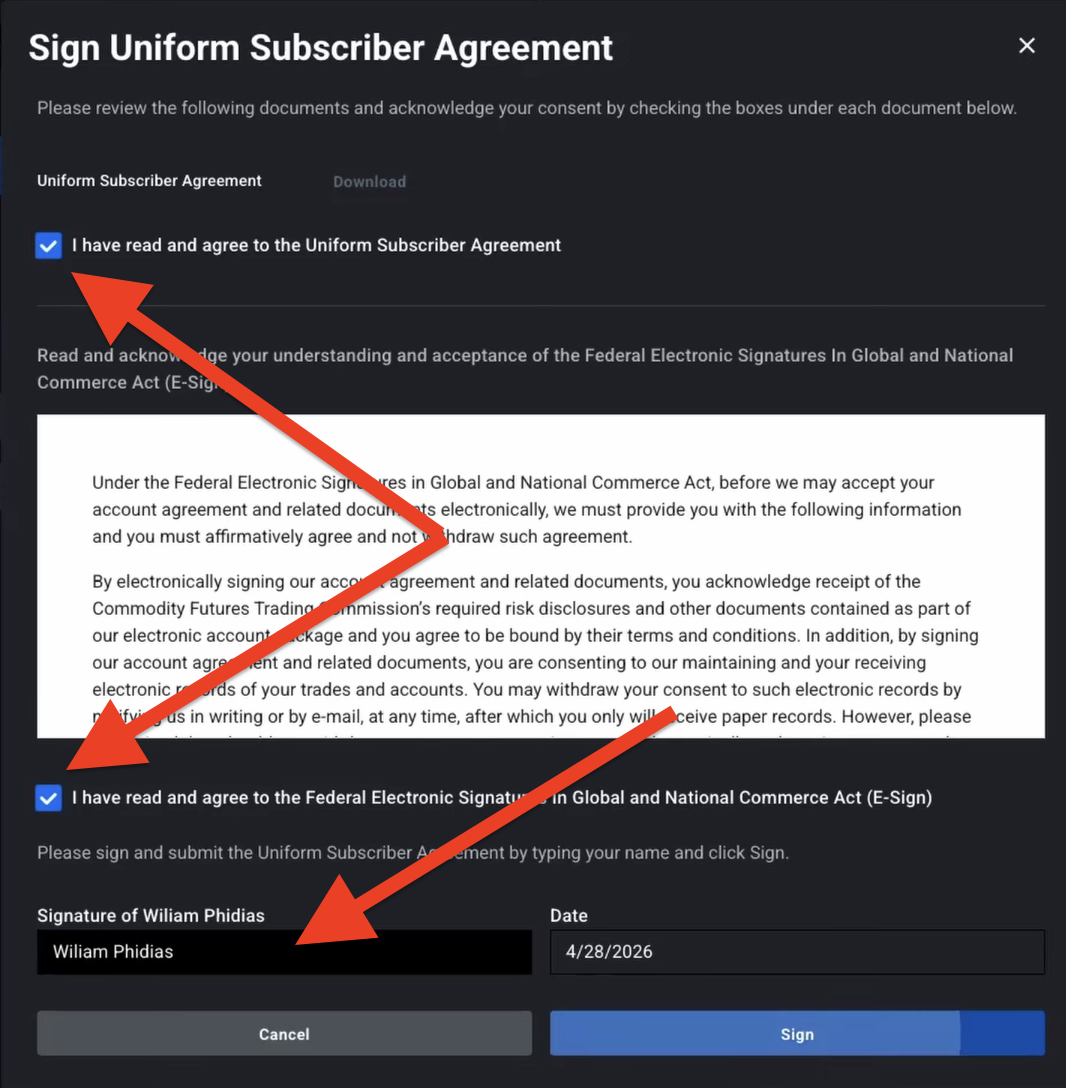
When the page confirms Successfully signed the agreement, you can close that window and move on.
Step 5 — Accept the Tradovate License Agreement
A second agreement appears: the Tradovate License Agreement. It is a long-form legal text. Scroll through, then click Accept at the bottom. Both agreements are now signed. You only do this once per account.
Step 6 — Access Simulation and enter the Tradovate web app
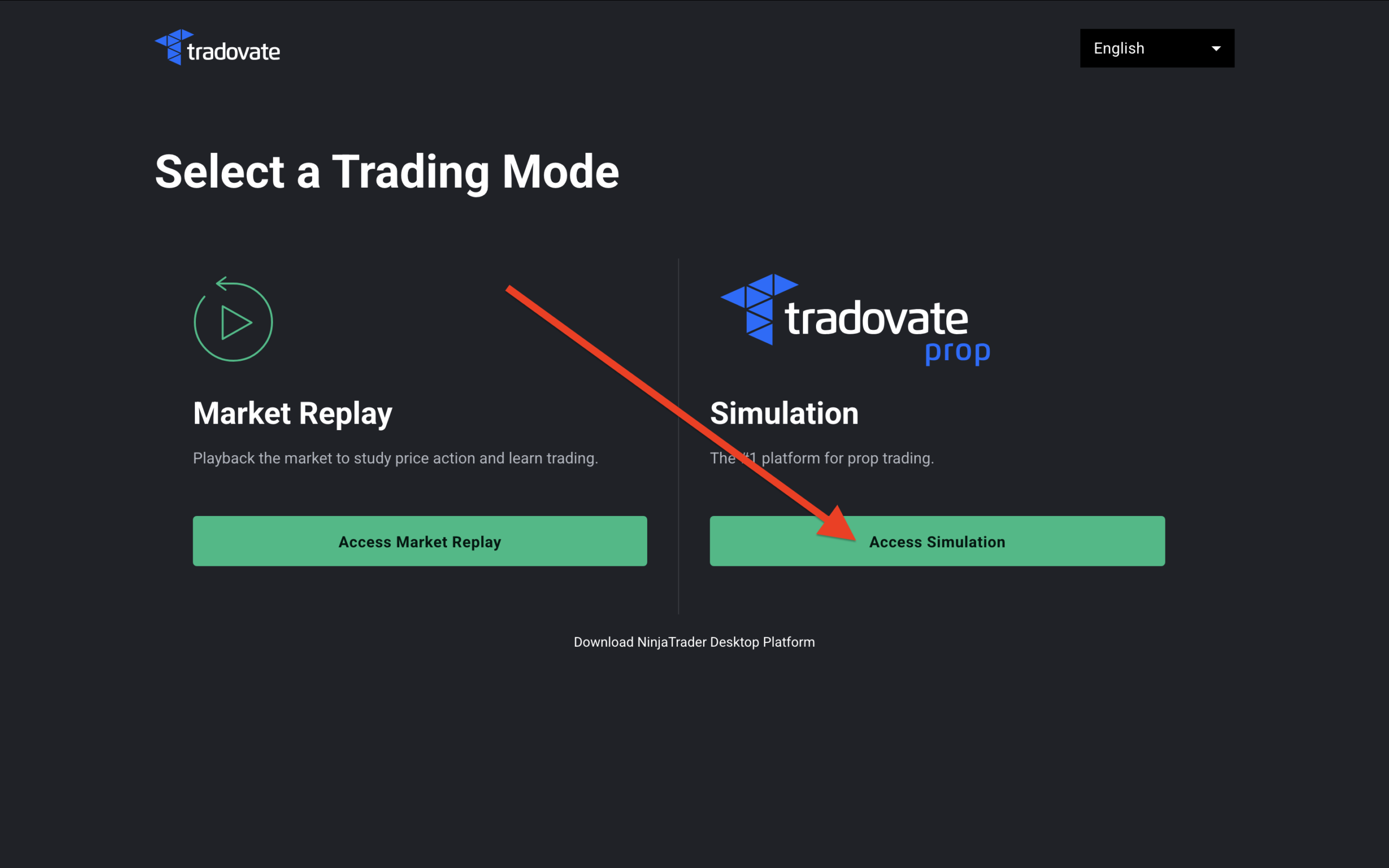
Once both agreements are signed, you are given the option to enter the trading environment. Click Access Simulation. Your funded evaluation account runs on Tradovate’s simulation environment, which is normal for prop firm accounts. It uses live market data with simulated execution.
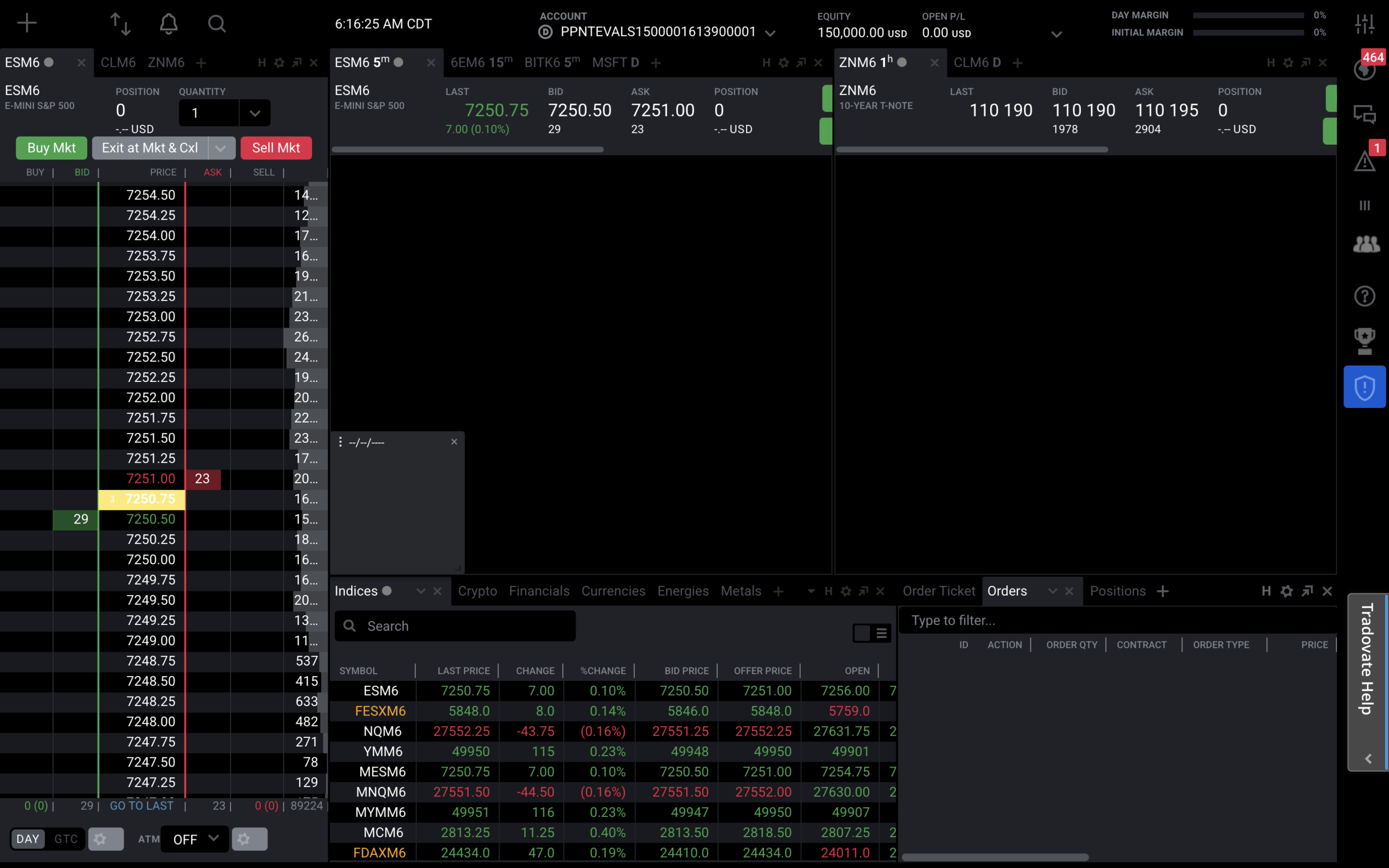
The Tradovate web app loads. A welcome modal may appear, click Done. You are now fully logged in. At the top of the screen you can see your account number, your equity, and your buying power.
Common mistakes and how to fix them
“My Market Data Certification was set to Professional”
Click back, switch to Nonprofessional. As a retail trader funded by Phidias you are nonprofessional by definition. The Professional setting triggers higher market data fees that will be charged to your account.
“My electronic signature was rejected”
Type your name exactly as displayed above the signature box. Same case. Same spacing. Same accents. The system does a strict match.
“I signed up for NinjaTrader, can I skip the Tradovate step?”
No. The market data and license agreements live inside the Tradovate web app. You sign them once there, and they unlock NinjaTrader, TradingView, and Tradovate web all with the same credentials.
Companion tutorials
Now that the Tradovate agreements are signed, your credentials work on every platform Phidias supports. Pick the one that fits your workflow.
- How to log into TradingView with your Phidias account — chart and execute on TradingView with no separate broker connection.
- How to log into NinjaTrader with your Phidias account — the desktop platform for advanced order tickets.
Ready to add another account?
Browse Express to Live, Fundamental, and Premium.
Frequently asked questions
Do I need to log into Tradovate even if I plan to trade on NinjaTrader or TradingView?
Yes. The market data subscriber certification and the Tradovate license agreement live inside the Tradovate web app. You sign them once there. After that, the same credentials unlock NinjaTrader and TradingView too.
Where do I find my Tradovate credentials in the Phidias dashboard?
Inside the Phidias dashboard, open the section labelled NinjaTrader Account. The name is shared because the credentials work across Tradovate, NinjaTrader, and TradingView. Your username and password are listed there.
Should I select Professional or Nonprofessional on the market data certification?
Nonprofessional. As a retail trader funded by Phidias you are nonprofessional. The Professional setting triggers higher market data fees billed to your account.
Why does my electronic signature keep failing?
The Tradovate signature field requires an exact match against the name printed just above the field. Capitalisation, spacing, and accents all matter. Type the name exactly as it is shown.
What does “Access Simulation” mean? Is my account real?
Funded prop accounts at Phidias run on Tradovate’s simulation environment with live market data and simulated execution. Your performance, payouts, and path to LIVE are real. The simulation label refers to the execution engine, not to your evaluation status.
Can I use the same Tradovate credentials on multiple devices?
Yes. Tradovate credentials work on the web app, the Tradovate mobile app, NinjaTrader, and TradingView. The same login moves with you across devices and platforms.