Want more screen real estate? Prefer a dedicated trading application? The DeepCharts desktop platform gives you everything the web version offers, plus the performance benefits of native software running directly on your PC.
At Phidias, you get free access to DeepCharts desktop with your evaluation or funded account. No separate subscription. No additional fees. Just download, connect your credentials, and you’re trading with professional-grade orderflow tools.
This guide walks you through every step, from download to your first chart. Takes about 5 minutes.
What You Need Before Starting
Before we dive in, make sure you have these ready:
Active Phidias Account
Any evaluation or funded account with DeepCharts data feed
Volumetrica Credentials
Found in your Phidias dashboard under “Volumetrica Account”
Windows PC
DeepCharts desktop runs on Windows
Step 1: Download DeepCharts Desktop
Log into your Phidias dashboard and navigate to the DeepCharts Web tab. You’ll see a “Download Platform” link. Click it.
This opens a new page with two important things:
- Download button for the DeepCharts installer
- Your license key (you’ll need this in a moment)
Download the installer and run it. The installation is straightforward. Just follow the prompts and let it complete.
Tip: If you have antivirus software, you may need to temporarily disable it or whitelist the installer. Some security software flags trading platforms during installation.

Step 2: Verify Your License
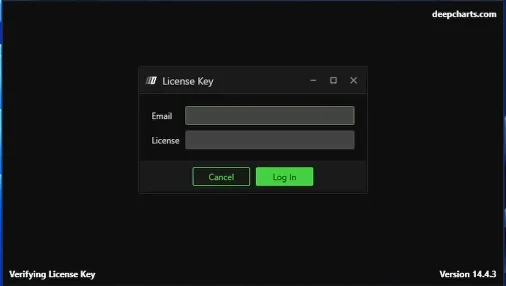
Open DeepCharts for the first time. You’ll be prompted to verify your license. Enter two things:
| Field | Where to Find It |
|---|---|
| Email Address | The email linked to your Phidias account (check Customer Profile if unsure) |
| License Key | Copy from the Download Platform page in your Phidias dashboard |
Paste in your license key and hit verify. Once validated, you’re in.
Step 3: Select Your Data Feed
DeepCharts asks which data feed you want to use. You’ll see two options:
Option 1: 15-Minute Delayed Data
For practice or learning the platform. Not for live trading.
Option 2: Real-Time DX Feed Data
Select this one. This is the live data feed included with your Phidias account.
Select the real-time DX feed option and click Next.

Step 4: Create Your Connection
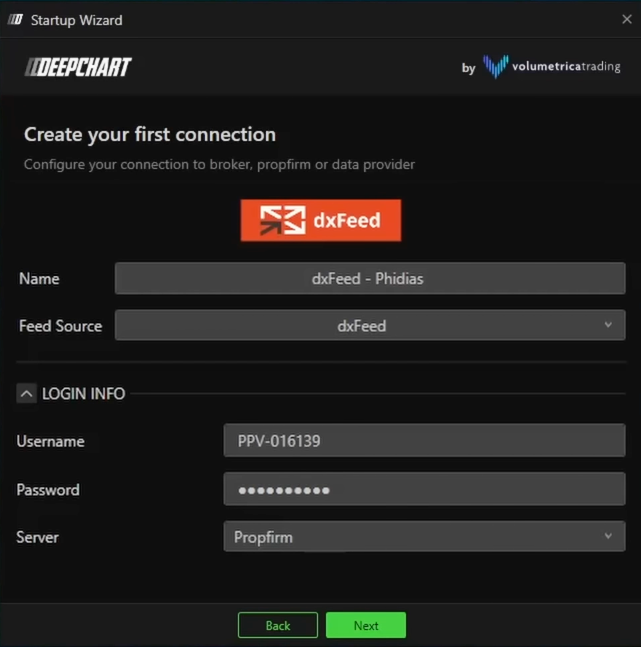
Now you’ll set up your first data connection. This is what links DeepCharts to your trading accounts.
Connection Name
Give it any name you want. Something like “DX Feed Phidias” works fine. This is just for your reference.
Feed Source
Select DX Feed from the dropdown.
Credentials
Here’s where you enter your Volumetrica credentials. Find these in your Phidias dashboard under the “Volumetrica Account” section.
Important: If you have both Rithmic and Volumetrica accounts at Phidias, make sure you’re using your Volumetrica credentials here, not Rithmic. They’re different.
Server
Select “Prop Firm” as your server.
Connect on Startup
Optional but recommended. If enabled, DeepCharts will automatically connect when you open it. Less clicking every time you trade.
Step 5: Select Exchanges
Next screen shows all available exchanges. You’ll see CME products (ES, NQ, CL, GC, etc.) and EUREX products (DAX, Euro Stoxx) if you’re at Phidias.
Leave everything at default. No changes needed here. Just click Next.

Step 6: Theme and Preferences
Choose your visual theme and sound preferences. The defaults work great, but you can customize to your liking.
Click Done to finish the initial setup.

Step 7: Connect to the Data Feed
You’re now in the main DeepCharts interface, but you’re not connected yet. Look for the Connection menu and select your newly created connection.
Wait for the green indicator. That means you’re live and connected.
Green light = You’re connected and ready to trade.

Step 8: Verify Your Accounts
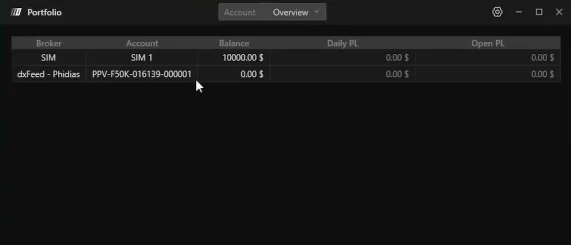
Before opening charts, let’s make sure everything is properly linked. Go to Trading > Show Portfolio.
You should see all your Phidias accounts listed here with their balances, P&L, and status. If they show up, you’re good to go.
Step 9: Open Your First Chart
Time to trade. Go to New > Price Chart.
Type the symbol you want. For E-mini S&P 500, just type “ES” and select the current contract (check the expiration month).
The chart will load. First time might take a minute while it downloads historical data. After that, it’s instant.
Tip: The more historical data you load, the more resource-intensive. Default is 10 days of tick data, which is plenty for most traders. Going beyond that switches to minute data.

Platform Overview: Key Features
Now that you’re set up, here’s a quick tour of the main features you’ll use daily.
Chart Controls (Top Bar)
| Element | What It Does |
|---|---|
| Symbol Selector | Shows current instrument and contract month. Click to change. |
| History Range | How much data to display. 10 days tick data is recommended. |
| Timeframe | Minutes, daily, weekly. Fully customizable intervals. |
Drawing Tools (Left Sidebar)
All the tools you’d expect: trend lines, rectangles, Fibonacci, text annotations, trade ideas. If you’ve used TradingView or NinjaTrader, this will feel familiar.
Template Indicators (Bottom Bar)
Quick access to popular setups:
Volume Profile
Footprint
Delta Profile
TPO Charts
Right-click any indicator to access its settings. Everything is customizable.
Trading Panel (Bottom Right)
The Chart DOM and trading panel let you:
- View the DOM directly on your chart
- Place orders with one click
- Set stop losses and take profits visually
- Manage positions without leaving the chart
Enable/Disable Trading (Upper Left)
See that trading toggle? If you’re analyzing and don’t want to accidentally place orders, disable trading. Good habit to have when you’re not actively looking for entries.
Indicators Library
DeepCharts includes 80+ indicators. Access them through the indicators button. Search by name or browse categories. Volume analysis, orderflow, traditional indicators — it’s all there.

Saving Your Chart Layout
Spent time setting up the perfect workspace? Save it.
Look at the left side of your screen you’ll see “Untitled” or similar. This is your layout manager. Save different layouts for different trading styles or sessions.
Switch between saved layouts instantly. Perfect if you trade multiple strategies or instruments that require different chart setups.
Additional Windows and Tools
Beyond price charts, DeepCharts offers specialized tools:
| Tool | Purpose |
|---|---|
| Time & Sales | Real-time tape reading for orderflow traders |
| Advanced DOM | Horizontal and vertical depth of market views |
| Scanner | Create watchlists and track multiple symbols visually |
| Replay | Backtest strategies or review previous sessions |
| Strategy Report | Detailed performance analytics on your trading |
The Trading Menu
Everything related to your trading activity lives here:
Strategy Report
Generate detailed performance reports with win rate, risk/reward, and more.
Orders
View all open and historical orders across accounts and instruments.
Portfolio
Account overview with balances, P&L, and margin information.
Trade Copier
Copy trades across multiple accounts. See our full trade copier guide.
Futures Contract Rollover
Futures contracts expire quarterly. When expiration approaches, you’ll need to roll over to the next contract.
DeepCharts has a built-in Symbols Rollover feature to make this seamless. No need to manually update every chart. The platform handles the transition.
Quick Setup Checklist
Here’s everything at a glance:
Download from Phidias dashboard > DeepCharts > Download Platform
Enter email + license key from download page
Select Real-Time DX Feed data
Create connection with Volumetrica credentials (from Phidias dashboard)
Select “Prop Firm” server
Connect and verify green indicator
Check Portfolio to confirm accounts are linked
Start Trading with DeepCharts at Phidias
That’s it. You’re fully set up with professional orderflow tools, real-time CME and EUREX data, and a platform built for serious futures traders.
DeepCharts desktop gives you all the power of institutional-grade volume analysis without the complexity. Whether you’re scalping ES or swing trading crude oil, you have the tools to see what retail traders can’t.
Ready to Trade with DeepCharts?
Get your Phidias account and access DeepCharts desktop for free. Professional platform, no extra fees.

Data Feed : dxFeed  Or Rithmic
Data Feed : dxFeed Or Rithmic
Data Feed : dxFeed Or Rithmic
Data Feed : dxFeed Or Rithmic
Data Feed : dxFeed Or Rithmic
Data Feed : dxFeed Or Rithmic
Data Feed : dxFeed Or Rithmic
Data Feed : dxFeed Or Rithmic
Data Feed : dxFeed Or Rithmic
Data Feed : dxFeed Or Rithmic
Data Feed : dxFeed Or Rithmic
Data Feed : dxFeed Or Rithmic
Data Feed : dxFeed Or Rithmic
Data Feed : dxFeed Or Rithmic

Data Feed : dxFeed Or Rithmic