Trading multiple prop firm accounts manually? That’s a fast track to missed entries, inconsistent sizing, and unnecessary stress. The DeepCharts trade copier solves this instantly. One click on your parent account, and every children account follows.
At Phidias, DeepCharts is directly integrated into your dashboard. No external software. No complicated setup. Just pure efficiency for traders managing multiple evaluation or funded accounts.
Watch the full video walkthrough below, then follow our step-by-step guide to get your trade copier running in minutes.
Why Use a Trade Copier for Multiple Accounts?
If you’re trading more than one account, you already know the challenge. You spot a setup, enter on one account, then scramble to replicate the same trade on your other accounts. By the time you’re done, price has moved, your entries are inconsistent, and your stop losses don’t match.
The trade copier eliminates all of this. Here’s what it does for you:
Instant Replication
Every order from your parent account is copied to all children accounts in milliseconds. Same entry, same stops, same targets.
Smart Position Sizing
Use contract multipliers to automatically scale positions based on account size. 50K gets 1 contract, 100K gets 2. Done.
Multiple Groups
Run separate copier groups for different account types. Trade your Fundamental accounts with one strategy, your Static accounts with another.
Where to Find DeepChart Trade Copier
The trade copier is built directly into DeepCharts, which you can access from your Phidias dashboard. No downloads required for the web version.
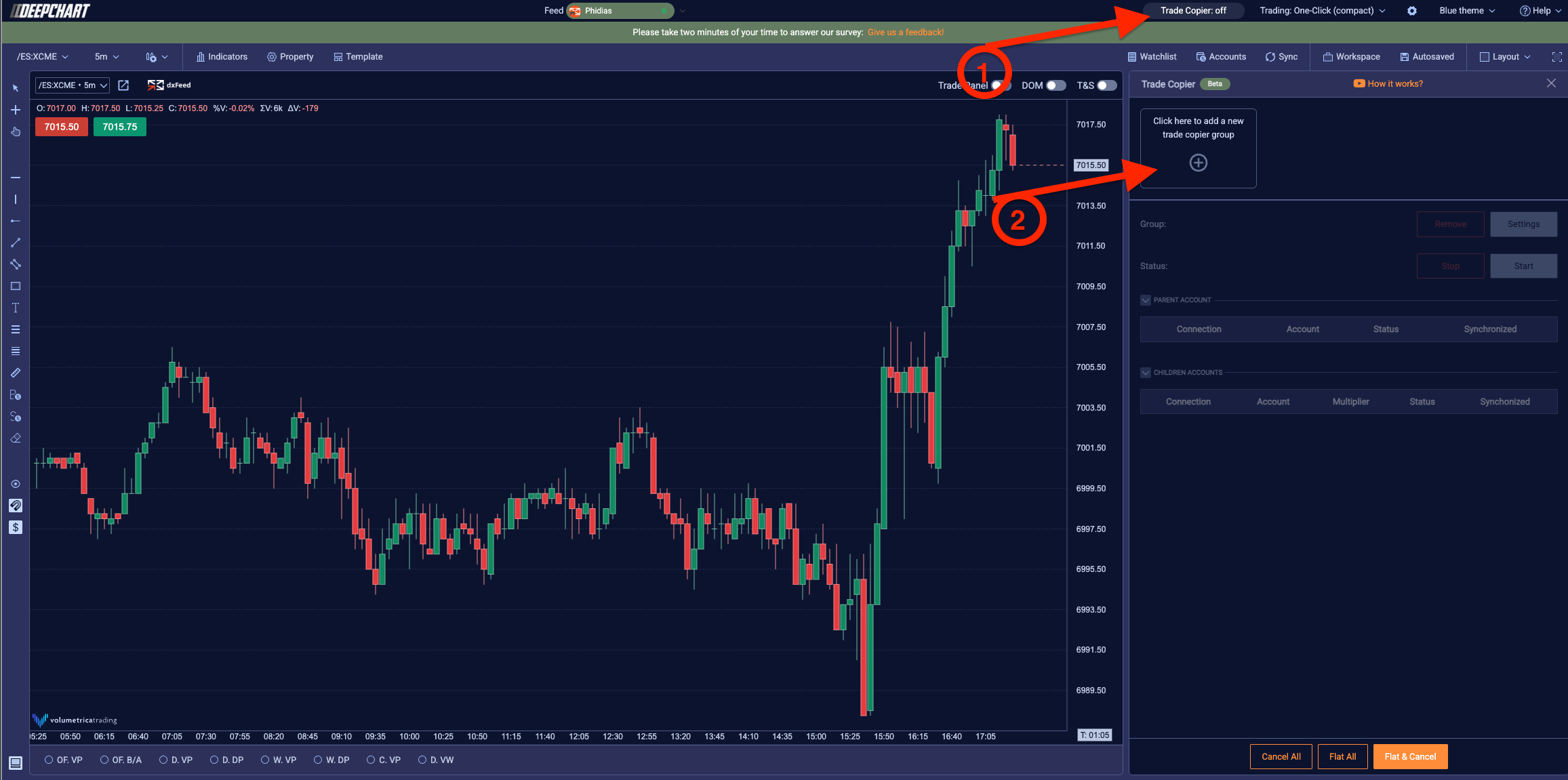
You’ll find the trade copier icon at the top of your DeepCharts interface. Click it to open the copier panel. The setup process is identical on both web and desktop versions.
Quick Access: Dashboard > DeepCharts Web Platform > Trade Copier Icon (top bar)
Step-by-Step Trade Copier Setup
Let’s walk through the complete setup. We’ll cover every setting so you understand exactly what each one does and which options work best for prop firm trading.
Step 1: Create a New Copier Group
Click the “Add” button to create a new trade copier group. First thing you’ll do is give it a name. Keep it simple and descriptive.
For example, if you’re grouping all your Fundamental accounts together, just name it “Fundamental”. If you have Static accounts, create a separate group called “Static”. This keeps everything organized when you’re running multiple copiers simultaneously.
Step 2: Configure Copy Mode
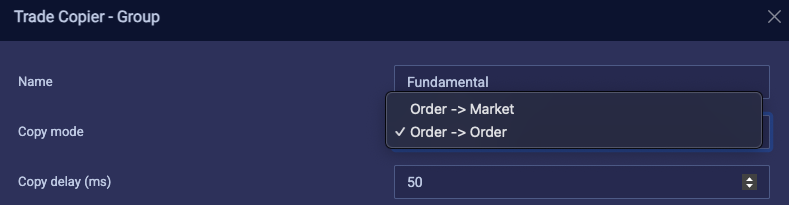
The copy mode determines how orders are replicated from your parent account to children accounts. You have two options:
| Mode | How It Works | Best For |
|---|---|---|
| Order to Order | Limit orders stay as limit orders. Market orders stay as market orders. | Same entry price on all accounts |
| Order to Market | All orders become market orders on children accounts. | Guaranteed fills on all accounts |
Our recommendation: Use Order to Order. This ensures all your accounts enter at the same price level. Only switch to Order to Market if you’re having fill issues during high volatility.
The Copy Delay setting below this lets you add a delay in milliseconds before orders are copied. Leave it at the default 50ms unless you have a specific reason to change it.
Step 3: Set Up Resynchronization Rules
Sometimes accounts get out of sync. Maybe there was a connection hiccup, or an order got cancelled on one account but not others. The resyncro mode tells the copier what to do when this happens.
| Mode | What Happens |
|---|---|
| None | Nothing. Accounts stay out of sync until you fix it manually. |
| Full Mkt At Best Price | Forces children accounts to match parent, opening positions at market if needed. |
| Flat Only At Best Price | Only closes positions to match parent. Won’t open new positions. |
Our recommendation: Use Flat Only At Best Price. This is the safest option. If an account desyncs, it will close any rogue positions but won’t open new ones at potentially bad prices.
Two additional settings control the timing:
- Synchronization Timeout: How many seconds before an account is considered out of sync. 15 seconds works well.
- Resynchronization Attempt Delay: How often the copier tries to resync. Keep this at 15 seconds.


Step 4: Configure Expiration Logic
What happens when your limit order fills on the parent account but a children account is still waiting? The expiration logic handles this scenario.
| Option | Behavior |
|---|---|
| None | Wait indefinitely for the limit order to fill. |
| To Market After Seconds | Convert to market order after the specified time. |
| Cancel After Seconds | Cancel the unfilled order after the specified time. |
Our recommendation: Cancel After Seconds with a 10-15 second timer. If price moves away and your limit doesn’t fill, you probably don’t want to chase it anyway. This keeps you safe from entering trades you didn’t intend to take.

Step 5: Select Parent and Children Accounts
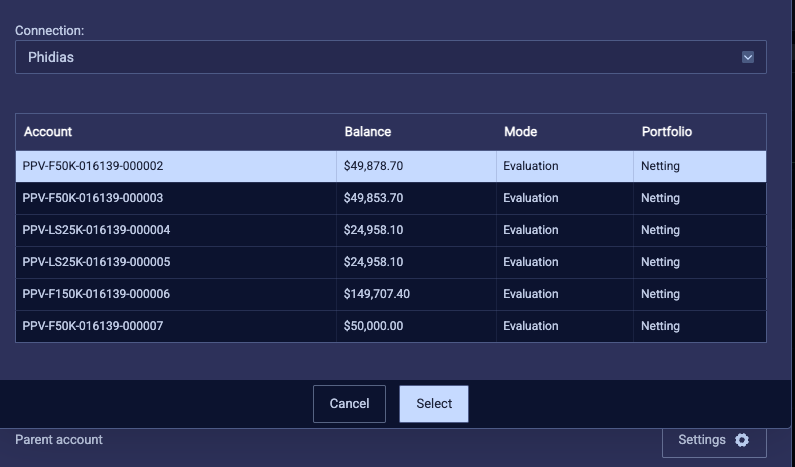
Now for the core setup. Select your parent account, this is your master account. Every trade you place here gets copied to the children.
Then add your children accounts. These receive the copied trades. You can add as many as you need.
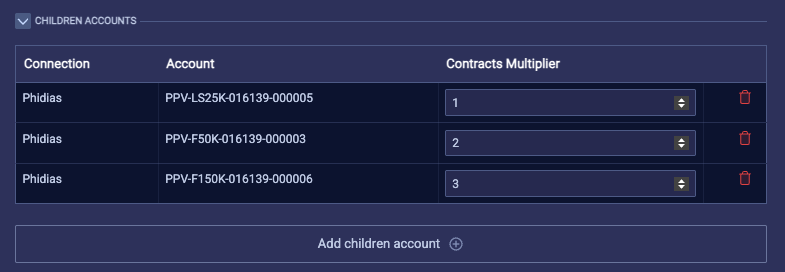
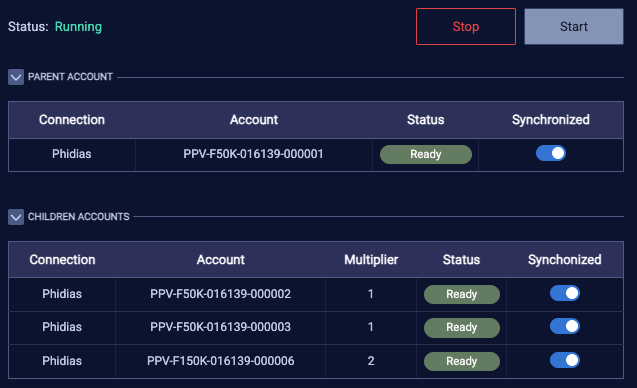
Here’s where it gets powerful: the contract multiplier. For each children account, you can set how many contracts it should trade relative to the parent.
Example Setup:
- Parent: 50K Fundamental (trades 1 contract)
- Children: 50K Fundamental #2 (multiplier: 1x = 1 contract)
- Children: 100K Fundamental (multiplier: 2x = 2 contracts)
- Children: 150K Fundamental (multiplier: 3x = 3 contracts)
This way, your position sizing automatically scales based on account size. Trade once, proper sizing everywhere.
Step 6: Configure OCO/Bracket Orders
These settings control how your stop losses and take profits are copied. Important stuff.
Bracket Child Ticks Margin: This is your tolerance threshold. If you enter at market and children accounts fill at slightly different prices, how much difference is acceptable before adjusting the SL/TP?
Set this to 10 ticks. If the fill difference is more than 10 ticks, the copier will adjust the bracket orders accordingly.
Bracket Postpone Fallback Insert: If the stop loss and take profit aren’t copied within this time, the copier forces them in.
Keep this at 15 seconds. You don’t want positions running without protection for too long.
OCO Cancel Fallback Postpone: When you cancel a stop loss or take profit on the parent, how long before it’s force-cancelled on children?
Set this to 10 seconds for responsive order management.

Step 7: Save and Start
Hit Save. Your copier group is now created but not yet active. You’ll see it in your copier panel with a “Stopped” status.
When you’re ready to trade, click Start. The status changes to “Running” and all your accounts show as “Ready” and “Synced”.
You’re live. Any trade you place on the parent account will now be instantly copied to all children accounts with your configured settings.
Running Multiple Copier Groups
At Phidias, you can trade up to 15 funded accounts: 5 Fundamental, 5 Swing, and 5 Static. That’s a lot of accounts to manage. The trade copier handles this elegantly with multiple groups.
Create separate copier groups for each account type. Run them simultaneously. Trade different strategies on different account types if you want.
Example Multi-Group Setup:
- Group 1 “Fundamental”: Parent = 50K Fundamental #1, Children = all other Fundamental accounts
- Group 2 “Static”: Parent = 25K Static #1, Children = all other Static accounts
To trade your Fundamental accounts, place orders on the Fundamental parent. To trade your Static accounts, place orders on the Static parent. Clean separation, full control.
Recommended Settings for Prop Firm Traders
Here’s our recommended configuration for most futures prop firm traders. These settings prioritize safety while maintaining efficiency.
| Setting | Recommended Value | Why |
|---|---|---|
| Copy Mode | Order to Order | Consistent entry prices across all accounts |
| Copy Delay | 50ms (default) | Fast enough, no reason to change |
| Resyncro Mode | Flat Only At Best Price | Closes rogue positions, won’t open unwanted ones |
| Expiration Logic | Cancel After Seconds | Prevents chasing missed entries |
| Expiration Time | 15 seconds | Enough time for normal fills, cancels stale orders |
| Sync Timeout | 15 seconds | Quick detection of sync issues |
| Bracket Margin | 10 ticks | Reasonable slippage tolerance for SL/TP |
| Bracket Fallback | 15 seconds | Ensures positions always have protection |
| OCO Cancel Fallback | 10 seconds | Responsive order management |
Safety Tips and Best Practices
A trade copier is powerful. That also means it can cause damage if you’re not careful. Here’s how to stay safe:
Always verify flat before closing
Before you close DeepCharts, make sure all accounts are flat and all pending orders are cancelled. Use the “Flat and Cancel” button to do this quickly.
Stop the copier when done trading
Click “Stop” on all copier groups before logging off. This prevents any accidental order placement from affecting your accounts.
Monitor the account panel
Keep the accounts tab visible while trading. You can see real-time P&L and position status across all your accounts.
Test with small positions first
Run a few test trades before going live with real size. Make sure orders copy correctly and brackets are placed as expected.
Quick Control Buttons
At the bottom of your copier panel, you’ll find three emergency buttons. Know what they do:
Cancel All
Cancels all pending orders across all accounts in the group.
Flat All
Closes all open positions across all accounts in the group.
Flat and Cancel
Closes all positions AND cancels all pending orders. Full reset.
Start Trading Multiple Accounts Today
The DeepCharts trade copier is one of the most powerful tools available for prop firm traders managing multiple accounts. It’s built directly into your Phidias dashboard, requires no external software, and gives you complete control over how trades are replicated.
Whether you’re running multiple evaluation accounts or scaling up with funded accounts, the copier saves you time, reduces errors, and lets you focus on what matters: finding and executing great trades.
Ready to Trade Smarter?
Get started with DeepCharts at Phidias. Direct dashboard integration, all account types, instant setup.

Data Feed : dxFeed  Or Rithmic
Data Feed : dxFeed Or Rithmic
Data Feed : dxFeed Or Rithmic
Data Feed : dxFeed Or Rithmic
Data Feed : dxFeed Or Rithmic
Data Feed : dxFeed Or Rithmic
Data Feed : dxFeed Or Rithmic
Data Feed : dxFeed Or Rithmic
Data Feed : dxFeed Or Rithmic
Data Feed : dxFeed Or Rithmic
Data Feed : dxFeed Or Rithmic
Data Feed : dxFeed Or Rithmic
Data Feed : dxFeed Or Rithmic
Data Feed : dxFeed Or Rithmic

Data Feed : dxFeed Or Rithmic